
 Appediet
What Nutrition Information Does Appediet Show?
Appediet can show calories, macronutrients, meal-level details, and progress information, but every number still depends on the food and portion recorded.
Use the visible fields to check the meal you entered and to notice patterns. Treat photo-based values as editable estimates, and use a verified label or food record when the exact product matters.
Contents
The short answer: what you see first
Depending on the entry and screen, a logged meal can show estimated calories, protein, carbohydrate, and fat, plus serving information, the foods in the meal, and meal-level insights. Available details vary by meal and entry type.
The rest of this guide is the same list from another angle: a day, a week, a recipe, or a packaged food.
| Where you look | What you see |
|---|---|
| One food | Estimated calories and macros; serving size or unit; entry name and preparation details when available |
| One meal | Foods in the meal, available totals, and meal-level insights or feedback |
| One day | Available totals against the selected goal, plus connected daily records such as water or weight |
| One week | A weekly summary and patterns from available logs; fields depend on version and record completeness |
| A recipe | Available nutrient details for the current recipe; fields vary by recipe and version |
| A packaged food | Available values tied to a serving basis; compare them with the current package label |
Download Appediet to log your next meal and see the fields for yourself.
What you see for one food or meal
A food entry can show estimated calories and core macros with a serving size or unit. Its name may also describe a preparation state—such as raw or cooked—when that information is part of the selected entry.
Two entries can share a name and still be different foods: dry and cooked rice are not the same weight, and plain and sweetened yogurt are not the same food. The preparation state tells you which food you logged, not just its calories.
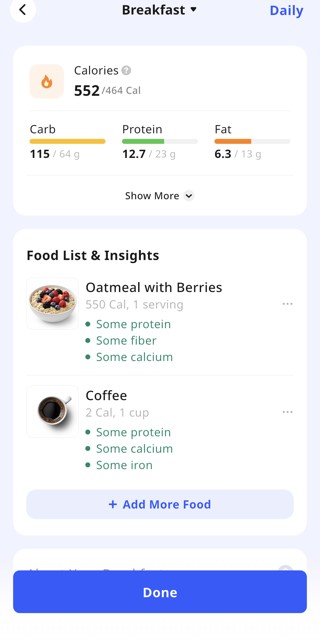
A meal adds those records up: each food and its numbers, then the meal total, plus meal-level insights and feedback — a short reading of the meal as a whole. Treat the feedback as a prompt to look again, not a command: if it points to a missing drink, a sauce, or a portion that looks off, check the record behind it first.
What you see for a whole day
Across a day, the numbers add up again against your goal. A single meal tells you what you ate; the day tells you where you stand.
The daily view also brings together the things that are not food: the water and weight you have logged, alongside the food totals. Use the day to spot its shape, not to judge one meal.
What the weekly report shows
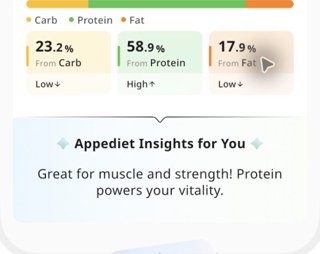
The weekly report steps back from individual meals and days. Read it together with the underlying logs: a week with missing meals is not as complete as a week with consistent records, and the visible fields can vary by version.
Check completeness first: a week with three missing lunches does not tell the same story as a week with seven logged lunches. A visible gap is useful information — it tells you whether the next step is a food choice or a logging habit that needs less friction.
If weight appears alongside the weekly view, do not assign a cause to one short-term change. Hydration, sodium, digestion, and other factors can move body weight, so use multi-week context and review the daily records behind the summary.
What recipes show
Recipe views can show a broader nutrient breakdown when the recipe includes structured ingredients, servings, and available nutrient data. The exact fields depend on the recipe and current version.
Read the serving basis before comparing values. A nutrient number only describes the stated portion, and a recipe estimate still depends on its ingredient amounts and serving count.
Packaged foods: barcode and label
Packaged foods start from a printed label. When you scan a barcode or search for a packaged food, the record shows the product name, the serving size, and the calories, protein, carbohydrate, and fat for the stated serving basis — check them against the package in your hand.
If a scanned result does not match the current label—a different flavor, formulation, serving size, or market—choose a closer match or create an entry from the label. Treat the current package label as the stronger source for that exact product.
A barcode identifies the product, not how much of the package you ate — that part is yours: the serving multiplier, the fraction of the package, the amount on your plate.
What a photo alone cannot show
A photo is a good starting point with clear limits: it cannot show hidden oil or sauce, the exact grams of a portion, or the recipe inside a mixed dish. Oil absorbed during cooking, butter melted into a dish, dressing mixed through a salad, and sugar in a sauce are all invisible to the camera, and they can change the numbers more than the visible foods do.
A curry, a casserole, a sandwich, or a smoothie hides its recipe inside the dish. The scan can suggest the visible foods and a first estimate, but it cannot see the proportions inside — which is why the numbers from a photo are estimates, not exact measurements and not medical advice.
How to check a field before saving
Check the record in a consistent order before saving.
1. Check the identity. Tap the item and read its name. Is it the food you ate, in the preparation state you ate it in? If the name is wrong, fix the identity first.
2. Check the portion. Read the serving size and unit, and adjust the amount to what you actually ate.
3. Compare with the label. For a packaged food, compare the product, serving size, calories, and macros with the package. If a field does not match, edit it or choose a closer match before you save.
4. Add what is missing. Add the oil, dressing, sauce, cheese, drink, or topping the photo missed, each one separately.
5. Read the meal back. Before saving, read the meal as a sentence: this food, in this amount, with these numbers — and fix any part that is wrong. Save repeat meals once they are right, and you check once instead of rebuilding the meal every morning.
The bottom line
In Appediet, the first visible fields are usually estimated calories and core macros. Other screens can add serving details, food-level insights, daily totals, weekly summaries, recipe nutrients, or package-linked information. The exact detail depends on the entry and current version.
What you do not see matters too: no exact measurement from a photo, no hidden ingredient the camera cannot see, and no nutrient shown for every food. The database covers 108 nutrients, but the detail on your screen changes with the meal and the entry type.
FAQ
What nutrition information does Appediet show for a meal?
For a meal, Appediet shows estimated calories, protein, carbohydrate, and fat for each food and for the meal as a whole, with the serving size and unit, the preparation state, and meal-level insights. The exact detail may vary by meal and entry type.
Can I see more than calories and macros?
Sometimes. Available details depend on the entry and screen. The current US App Store listing describes coverage of 108 nutrients, but that does not mean every nutrient is shown for every food, meal, or recipe.
Why does one meal show more detail than another?
Detail depends on the entry type and the food. A barcode entry starts from a printed label, a recipe from its ingredient list, and a photo from what the camera can see. A mixed or restaurant meal usually shows less exact detail than a packaged food with a label.
What can I see for a packaged food?
For a packaged food, check the product name, serving size, calories, protein, carbohydrate, and fat against the package label, and add sodium or fiber when that field matters to you. If the scanned result does not match the label, choose a closer match or create an entry from the label.
What does the weekly report show?
The weekly report gives a summary of the week, the patterns behind it, and how complete the week is, including missing or partial days. It also puts a one-week weight change in context, since weight can move with hydration, sodium, digestion, and other factors.
Are the numbers exact?
No. AI estimates are estimates, not exact measurements and not medical advice. A photo cannot show hidden oil or sauce, exact grams, or the recipe inside a mixed dish, so check the foods, portions, and labels before saving, and edit anything that does not match what you ate.
See the fields for yourself
Log your next meal and check the numbers before you save.
Download AppedietFurther reading
- How AI Estimates Food Calories
How a photo becomes an estimate, and why portions are the hard part. - Nutrition Label to Food Log: A Step-by-Step Guide
Turn a packaged food's label into a log entry.
Related
- How to Use Appediet's Weekly Report to Spot Useful Patterns
Turn the weekly summary into one practical change. - Turn Appediet Meal Feedback into Action in 5 Steps
What to do with the feedback after a meal is logged.